Device Quick Start Guide
I've got this radio, now what?

Welcome! This page is meant to get you up and running quickly, with critical settings where needed and sensible defaults everywhere else.
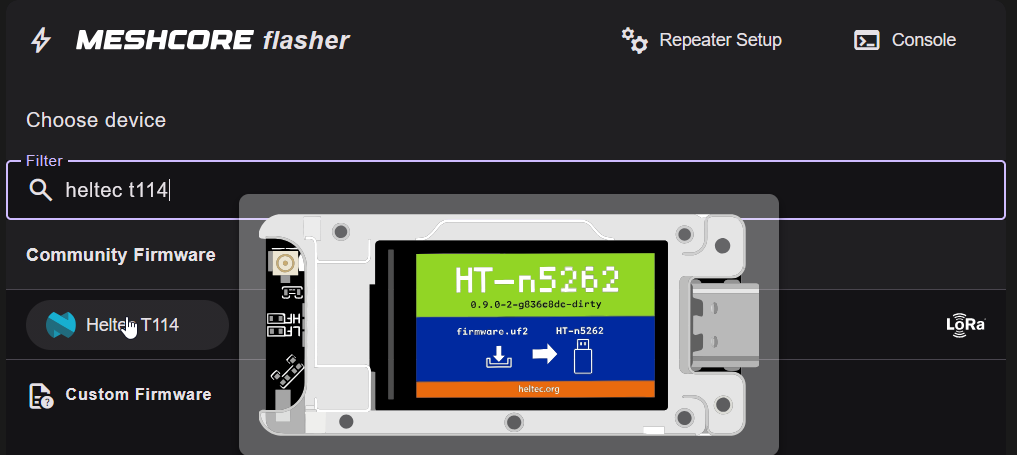
1: Open Edge or Chrome and go to https://flasher.meshcore.co.uk/. Firefox won't work here.
2: Search for your device by name. If you're not sure, you can hover your mouse over the device name to see a picture. Click on the correct device.
3: Choose the role for your device:
| Role | Purpose | Description |
|---|---|---|
| Bluetooth Companion | Chat | The most common role. Connect the device to your phone with Bluetooth and use the mesh |
| USB Companion | Chat | Connect the device to a computer over USB and use the mesh |
| Repeater | Infrastructure | Repeat messages to expand the mesh |
| Room | Persistent messages | Post messages that others can read later. Skip this for now |
| Ripple GUI / MeshOS | Chat | Use the mesh without a phone or computer |
4: Click "Enter DFU Mode" if it is displayed.
5: If this is the first time you've flashed this device, click "Erase Device" or "Erase Flash"
6: When this has finished, click "Flash!"
7: Select follow-up instructions based on your device role
Bluetooth Companion
1: Download Meshcore for Android or iOS
2: Open the Meshcore app and tap "Connect"
3: Select your device from the list
4: Enter the pairing code. If your device has a display, it will have a pairing code on it. If not, the pairing code is "123456".
5: Tap the gear icon to open your device settings
6: Tap Name and enter the name you want others to see on the mesh
7: In Radio Settings, tap Choose Preset, and select "USA/Canada (Recommended)", then tap the check mark in the top right. Don't change anything from this preset.
8: If your device doesn't have a display, tap Bluetooth Settings and change the default PIN to something else that you will remember.
USB Companion
1: Go to the Meshcore Web Client
2: Click "Connect" and select USB at the bottom of the screen
3: Click "Scan" and select your device
4: Tap the gear icon to open your device settings
5: Tap Name and enter the name you want others to see on the mesh
6: In Radio Settings, tap Choose Preset, and select "USA/Canada (Recommended)", then tap the check mark in the top right. Don't change anything from this preset.
Repeater
1: Click "Configure via USB"
2: In the popup, click "Connect"
3: In "Name", give your repeater the name you want displayed on the mesh
4: In "New Admin Password", enter a secure admin password that you can remember
5: Next to latitude and longitude, click the map icon.
6: Find your repeater location on the map.
7: Click the area that you want to show as your repeater's location. This will be visible, so for security reasons you can pick a slightly different location, but please keep it within a couple hundred feet (some of our tools depend on having a reasonably accurate location for repeaters).
8: In Radio Settings, tap Choose Preset, and select "USA/Canada (Recommended)", then tap the check mark in the top right. Don't change anything from this preset.
9: Click "Reboot", reconnect your repeater, and click "Send Advert"
10: Mount your repeater. That's all you have to do for now, but check Tuning Your Repeater (coming soon) for more detailed settings.
Standalone (Ripple GUI)
1: Complete the UI tutorial
2: For your new network, select "MeshCore"
3: Select "USA/Canada (Recommended)"
4: Give this network profile a name, or just leave it as the default.
5: Enter the settings for your network profile
6: Under "Identity", enter the name you want others to see on the mesh
7: Click a channel, join it, and say hi!