
OTA Repeater Upgrades on NRF52 Hardware
Sometimes you have a repeater in a hard to reach spot. Maybe you don't want to pull hardware down, open it up, and connect to computer. Or perhaps you just want to be stealthy about your upgrades for one reason or another...

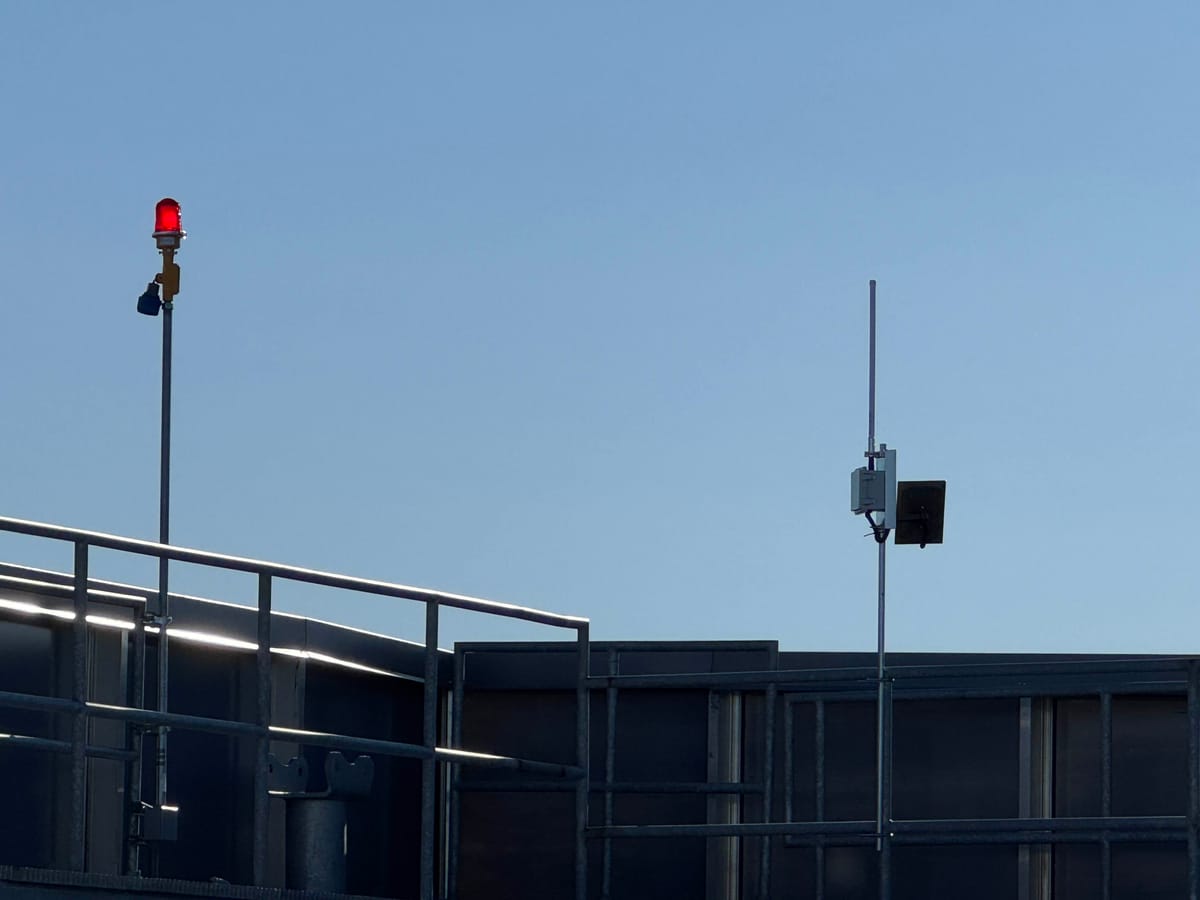
Keeping hardware, especially repeaters, up to date can be challenger. Nodes on roofs or placed out of reach without ladder/pole access. Luckily for us, NRF52 based hardware supports over the air (OTA) upgrades over bluetooth. This means you can use your Android or iOS device to update firmware. I've read iOS can be bit more problematic for this though I can't confirm this.
But first let's talk about bootloaders. These devices actually have multiple firmware components and typically we are just updating the application that is started by the bootloader. The bootloader itself handles allowing updates via serial, usb drag and drop (UF2), and via bluetooth. The problem we might run in to is that bluetooth can be the flakiest of process. A bad flash might leave the device unable to boot. You could still flash via serial or UF2 to recover, but this leaves you having to retrieve the device. We can get around this by using a modified bootloader that defaults to accepting bluetooth upgrades if it can't boot the application. Failed upgrades allow us to try again, while still allowing serial or UF2 upgrades if needed. A modified bootloader is available here. You can see boards supported here. I've personally had success with T1000-E and Rak 4631 hardware.
Follow the instructions there for details but the TLDR version is:
1. Download the right UF2 file from the releases
2. Enter DFU mode then drag and drop the UF2 file to the device.
After this, updating repeater (or even room firmware) will go like this:
1. Install the appropriate DFU update app (for Android, for iOS)
2. Download the right firmware ZIP file for your device/role here.
3. Be physically very near to the device (as Bluetooth range is limited). In Meshcore, sign in to manage the device, then go to "Command Line" and enter the command start ota. You should get confirmation back with bluetooth MAC address.
4. Open the DFU update app and make sure your settings match the recommendations here.
5. Select the right Meshcore firmware ZIP file, select the right device (should be something like RAK4631_OTA and have the same MAC from last step), and hit the Upload button.
6. If anything fails, you should be able to simply try again. I sometimes have to try a second time. If the device isn't available anymore in the bluetooth device list, it may have booted up in old firmware version and require you to go step 3.
If anything goes completely sideways, reach out on Discord and hopefully we can figure it out!


